
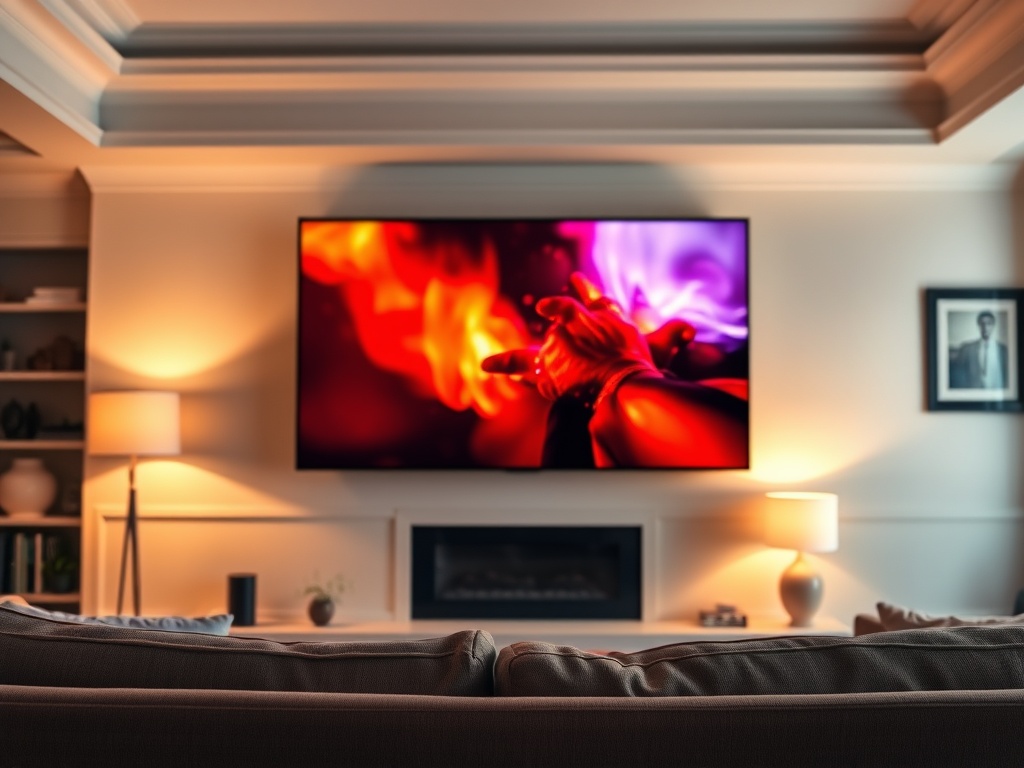
HDR — High Dynamic Range — expands the range of brightness a screen can display, but the technology only works as intended when your display, content, and room setup are all calibrated to match.
TL;DR — Key Takeaways
- HDR expands the range from deepest blacks to brightest highlights beyond what standard dynamic range can show.
- There are multiple HDR formats (HDR10, Dolby Vision, HLG) that are not always compatible.
- HDR looks wrong most often because of incorrect TV settings, poor room lighting, or content that was not properly mastered for the format.
- Most TVs need their default settings adjusted before HDR looks as intended.
What HDR Actually Does
Standard dynamic range (SDR) displays a brightness range that was designed for content production and viewing conditions established decades ago. In practical terms, this means the image cannot simultaneously show very deep blacks and very bright highlights without compromising one or the other.
HDR expands this range in both directions. A properly implemented HDR image can show the glow of a lamp against a dark room while simultaneously showing detail in the shadows behind it — a range of brightness that mirrors how the human eye perceives real scenes. When it works, HDR makes images look noticeably more lifelike.
The Format Fragmentation Problem
HDR is not a single standard — it is a family of competing formats, which creates compatibility issues:
- HDR10 is the baseline, open standard. Virtually all HDR TVs support it.
- Dolby Vision adds dynamic metadata, which adjusts HDR parameters scene by scene rather than using a single setting for the whole film. It is generally considered higher quality but requires a license, and not all TVs support it.
- HDR10+ is Samsung and Amazon’s alternative to Dolby Vision, also using dynamic metadata. Support is less widespread.
- HLG (Hybrid Log-Gamma) is used primarily for live broadcast HDR content.
A Dolby Vision-mastered film played on a TV that only supports HDR10 will play in HDR10, not Dolby Vision — the full quality of the master is not reproduced. Checking which HDR formats your specific TV supports is straightforward on the manufacturer’s spec page. For a broader guide to display technology choices that includes HDR considerations, the comparison of A24 vs major studio release strategies also covers how production decisions affect what you see at home.
Why HDR Looks Wrong on Many TVs
The most common reasons HDR images look washed out, overly bright, or oddly colored:
Default TV Settings Are Not Calibrated for HDR
Most TVs ship with a ‘Vivid’ or ‘Dynamic’ picture mode that looks impressive in a bright showroom but is poorly suited to actual HDR content. This mode typically has excessive brightness, artificial sharpening, and color processing that conflicts with the HDR signal. Switch to ‘Movie’ or ‘Cinema’ mode, which is usually closest to the display’s calibrated performance.
Brightness and EOTF Mismatch
HDR has a defined relationship between the signal and the brightness of the display, called the Electro-Optical Transfer Function (EOTF). Some TVs apply their own tone mapping on top of this, creating a mismatch. High-quality calibration tools — or a professional calibrator — can correct this, but the basic setting is to disable any automatic brightness adjustment while in HDR mode.
Room Lighting
HDR is designed for moderately dark viewing environments. In a brightly lit room, the expanded brightness range of HDR is partially washed out by ambient light, which also changes the perceived black level. This is not a flaw in the TV; it is a mismatch between the technology and the viewing environment. The Imaging science foundation provides guidance on optimal home theater environments, including lighting recommendations for HDR viewing.
How to Fix Common HDR Problems
| Problem | Likely Cause | Fix |
|---|---|---|
| Image looks washed out | Vivid/Dynamic mode active | Switch to Movie/Cinema mode |
| Colors look unnatural | Color enhancement processing on | Disable color enhancement/processing |
| Highlights are crushing | Peak brightness too high | Reduce peak brightness in HDR menu |
| Dark scenes look grey, not black | Room too bright, or EOTF mismatch | Dim room; disable auto brightness |
| No HDR indicator showing | Format mismatch or HDMI version | Check HDMI 2.0/2.1 port and source settings |
HDMI and Source Requirements
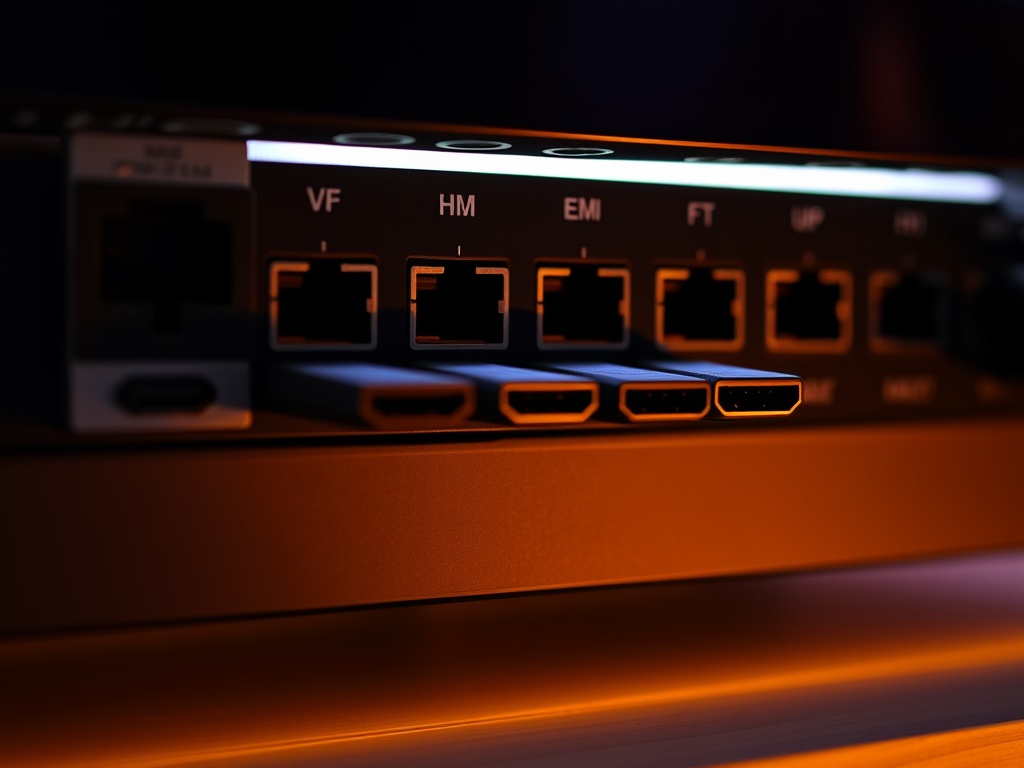
HDR requires sufficient HDMI bandwidth to carry the signal. HDMI 2.0 supports HDR10 and HLG at up to 4K 60Hz. HDMI 2.1 adds bandwidth for Dolby Vision at higher frame rates and resolutions. If your TV has a mix of HDMI versions — common in mid-range models — ensure your streaming device or player is connected to an HDMI 2.1 port if you want full HDR support.
Streaming platforms also vary in what HDR they deliver. Netflix and Apple TV+ support Dolby Vision on compatible titles; Amazon Prime Video supports HDR10+ and Dolby Vision; Disney+ supports Dolby Vision and HDR10. The content’s format must match what your display can receive for the full quality to be delivered. For guidance on managing the streaming technology side of home entertainment, the related guide on limited vs ongoing series formats also covers the streaming context that makes HDR relevant to most home viewers.
When to Seek Professional Calibration
For a high-end display in a dedicated viewing environment, professional calibration using a colorimeter or spectrophotometer produces results that no manual adjustment can match. This is typically worth the cost for OLED TVs above a certain price point. For budget and mid-range displays, the Movie/Cinema mode adjustment and room lighting control described above will get you most of the available benefit.
Your Display Settings Checklist
Set picture mode to Movie or Cinema, disable all motion smoothing, turn off any dynamic brightness adjustment, set HDMI input to Enhanced or UHD Color mode, confirm the HDR logo or indicator appears when playing HDR content. These five steps resolve the majority of HDR display problems without any additional tools.