

Most home Wi-Fi problems should be checked in a fixed order: confirm the internet connection, test one wired or close-range device, inspect router placement and interference, then decide whether to change settings or upgrade hardware. Randomly buying a new router before testing can hide the real issue.
TL;DR: Separate internet service problems from Wi-Fi signal problems before upgrading anything.
- Router placement, device load, bands, cables, and firmware often matter as much as speed plan size.
- Upgrade when coverage, hardware limits, or device count remain problems after basic checks.
Start by identifying which problem you actually have
“The Wi-Fi is bad” can mean several different things. The internet service may be down. The modem may be failing. The router may be poorly placed. One laptop may have a weak adapter. A streaming box may be too far from the router. A neighbor’s network may be crowding the same channel. These are different problems with different fixes.
The first test is simple: check whether every device is affected or only one. If every device fails, restart the modem and router according to the equipment instructions, then check your provider’s outage page if available. If only one device fails, the issue may be its adapter, saved network profile, VPN, DNS settings, or software state.
The FCC home network tips recommend placing a router centrally to maximize Wi-Fi coverage and considering the 5 GHz band for important uses because it may be less crowded. That official advice supports a practical rule: test placement and bands before buying faster service.
A short shared checklist also helps new users learn what normal communication looks like, which makes unusual requests stand out faster.
Troubleshooting ladder from quick checks to upgrades
| Stage | Check | Upgrade only if… |
|---|---|---|
| Service | Look for outage notices and test near the modem. | The plan is consistently too slow for actual household demand. |
| Signal | Move close to the router and compare results. | Coverage fails after placement and band changes. |
| Capacity | Disconnect non-essential devices and retest. | The router cannot handle normal device count. |
| Hardware age | Check firmware support and router standard. | The router is unsupported, unstable, or lacks needed coverage. |
What to check first
Check power and cables. A loose coax, fiber, or Ethernet cable can look like a Wi-Fi issue. If your modem and router are separate boxes, make sure the cable between them is secure and rated for the speed you expect.
Restart in the right order. Turn off the modem and router, wait briefly, start the modem first, wait until it is fully online, then start the router. This clears simple state problems without changing settings.
Run a close-range speed test and a normal-location speed test. A fast result near the router but a poor result in the bedroom points to Wi-Fi coverage, not necessarily the internet provider. A poor result everywhere may point to service, modem, router capacity, or cabling.
Check device load. Smart TVs, cameras, game consoles, phones, tablets, and laptops can all compete. Disconnect non-essential devices briefly and test again. If performance improves, the issue may be capacity or a device using bandwidth in the background.
Settings and placement changes that often help
Move the router out from behind furniture, cabinets, aquariums, appliances, and thick walls. A central, open location is boring advice because it works. Avoid placing the router on the floor if shelves are available.
Use the right band. The 2.4 GHz band travels farther but is often slower and more crowded. The 5 GHz band is usually faster over shorter distances. Wi-Fi 6 and newer routers may also use smarter capacity management, but only compatible devices benefit fully.
Update router firmware if your manufacturer provides updates. Firmware can fix stability and security issues, though the process varies by router. Record settings before updating, especially if the network supports work, cameras, or smart-home devices.
Review security. Use a strong Wi-Fi password and modern encryption when available. Remove unknown devices. A phishing and spoofing guide will not configure your router, but it can help users avoid fake router support pages and scam messages that imitate providers.
When to upgrade and what to upgrade first
Upgrade your plan if wired or close-range tests consistently reach the limit of your subscription and your household genuinely needs more bandwidth. Upgrade the router if the service is fast near the modem but coverage or device capacity remains weak. Add a mesh system if the home layout has unavoidable dead zones and a single router cannot cover them well.
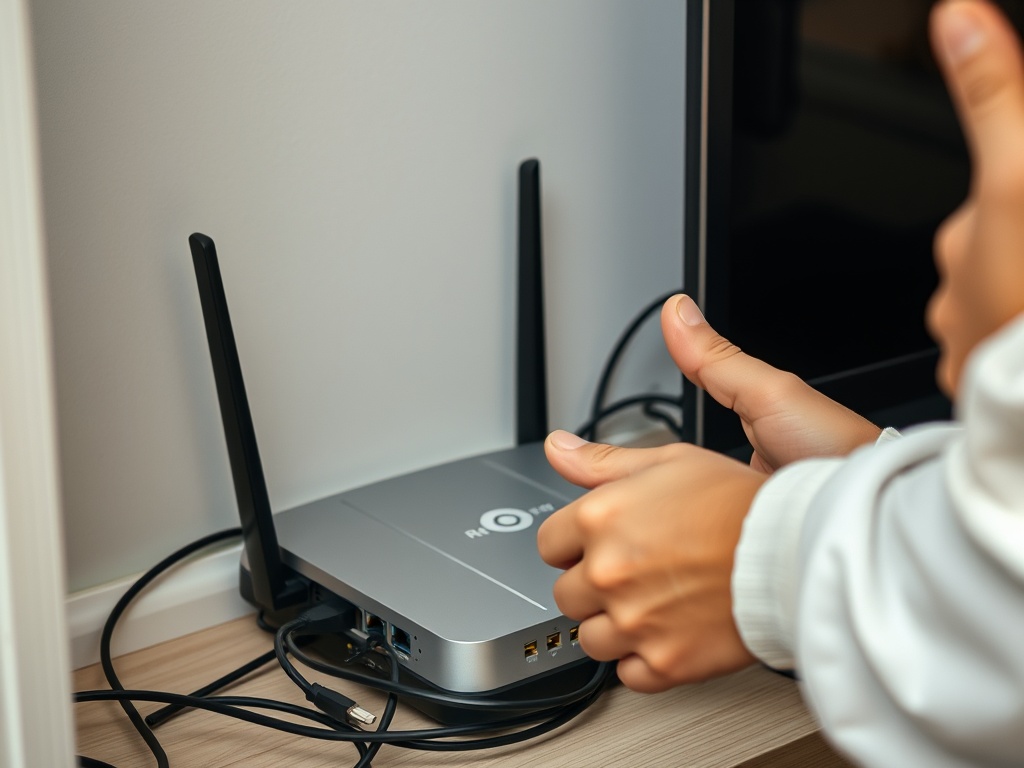
Do not upgrade everything at once. If possible, replace or reposition one component, then retest. A new mesh system cannot fix a bad modem signal from the provider. A faster plan cannot fix a router hidden behind metal shelving. A new laptop cannot fix poor router placement, though device maintenance mistakes can still affect one machine’s network performance.
For websites and online businesses, remember that home Wi-Fi is only one side of perceived speed. If your own site feels slow everywhere, a CDN resilience guide may be more relevant than router placement. Separate local access problems from web delivery problems.
Signals that point to professional or provider help
Call the internet provider when the modem cannot establish service, wired tests are far below the plan after rebooting, outage tools show a local fault, or signal levels need inspection. Do not keep changing Wi-Fi names and passwords when the modem itself is not online. That only adds confusion for every device in the house.
Ask for professional network help when the home has thick walls, detached offices, security cameras, multiple floors, or work requirements that cannot tolerate trial-and-error outages. A basic home can often be fixed with placement and settings. A complex layout may need Ethernet backhaul, access points, or a planned mesh design.
A simple test log for recurring slowdowns
When Wi-Fi problems repeat, write down the room, device, time, symptom, speed test result, and whether other devices were affected. Patterns often appear after a few entries. Evening slowdowns may point to household demand or provider congestion. One-room failures may point to placement or building materials. One-device failures may point to adapter or software issues.
This log also improves support calls. Instead of saying “the internet is bad,” you can say the router is stable near the living room, speeds drop in the back bedroom, and wired tests are normal. Clear evidence shortens the path to a real fix.
A calmer way to keep Wi-Fi reliable
Write down your network name, router model, admin login location, ISP support number, and the date of the last firmware update. Keep the router in a ventilated place. Review connected devices once a quarter. These habits prevent the panic cycle where every slowdown becomes an urgent shopping decision.
A good home Wi-Fi fix starts with evidence. Test close, test far, test wired if you can, and make one change at a time. That is the difference between solving the problem and simply adding more hardware to the shelf.