

Configure a new Windows PC by securing updates first, signing in deliberately, setting backup locations, reviewing privacy and startup settings, and installing only the apps you truly need. The right setup prevents clutter, sync confusion, and security gaps before they become habits.
TL;DR: Update Windows, confirm backup, and check security before customizing themes or installing many apps.
- Decide what will sync to the cloud and what will stay local before moving files.
- Keep a short setup log with accounts, installed apps, recovery settings, and warranty details.
The order matters more than the number of settings
A new PC feels ready when the desktop appears, but the first hour can shape the next several years of use. Many people install apps, copy files, and change preferences before updates and backups are stable. That can create duplicate folders, broken shortcuts, conflicting startup apps, or missing recovery information.
Start with the basics: power, network, account, updates, security, and backup. Microsoft update installation guidance explains how to check for the latest Windows updates, while Microsoft Windows Backup guidance explains how backed-up information can be associated with a Microsoft account on consumer devices. Those two official steps should happen before you treat the PC as finished.
This guide is written for a personal or small-office Windows PC, not a managed enterprise machine. If your device is owned by an employer or school, follow their enrollment and security process before changing settings.
A setup sequence that avoids rework
| Setup phase | Main action | Why it prevents problems |
|---|---|---|
| Before installing apps | Connect to power and a trusted network, then run updates. | Reduces driver, firmware, and security issues. |
| Before moving files | Decide cloud sync and local storage locations. | Prevents duplicate desktop and document folders. |
| Before saving passwords | Choose one password manager approach. | Avoids scattered credentials across browsers and apps. |
| Before daily use | Review startup apps, notifications, backup, and recovery. | Keeps the PC clean and easier to troubleshoot. |
Step-by-step configuration checklist
First, connect to a trusted network and plug into power. Avoid doing the first round of updates on a weak public connection. If the device is a laptop, keep it charging during setup so firmware, driver, and operating system updates are not interrupted.
Second, sign in with the account you actually plan to use. Personal Microsoft accounts, work accounts, and local accounts have different backup and sync behavior. Review OneDrive prompts carefully. If you accept every default without reading, desktop, documents, and pictures may begin syncing when you expected them to stay local.
Third, run Windows Update until no important updates remain. Restart when asked. Do not judge speed or battery life before the device has finished its first update cycle, indexing, and app setup.
Fourth, open Windows Security and confirm that protection is active. You do not need to install random security tools before confirming what is already built in. If you later add a third-party product, use reputable software and avoid overlapping tools that fight for the same job.
Fifth, set a backup plan. Decide where documents, photos, downloads, and project files will live. This is the moment to create a desktop organization plan, because default save locations determine how clutter grows.
Settings worth reviewing before daily use
Review startup apps. Many preinstalled or newly installed apps want to launch every time Windows starts. Disable items you do not need at boot, but do not disable security, sync, or hardware utilities unless you understand the effect. A lean startup makes performance easier to diagnose later.
Review notifications. A new PC can become noisy quickly. Keep security, calendar, communication, and backup alerts, but mute promotional or low-value app notifications. This reduces distraction without hiding critical warnings.
Review browser defaults, password manager behavior, and sign-in recovery. If you use a password manager, install it early and make it the habit from day one. If you save passwords in more than one place without a plan, future logins become confusing.
Review accessibility and comfort settings. Text size, night light, pointer size, keyboard shortcuts, and display scaling can make the machine easier to use. These are not cosmetic extras; they affect how long you can work comfortably.
Apps, files, and cloud sync without chaos
Install apps in batches, then pause. Start with essentials: browser, office suite, password manager, communication tools, printer or scanner software if needed, and any required work apps. After each batch, restart and confirm the PC still behaves normally.
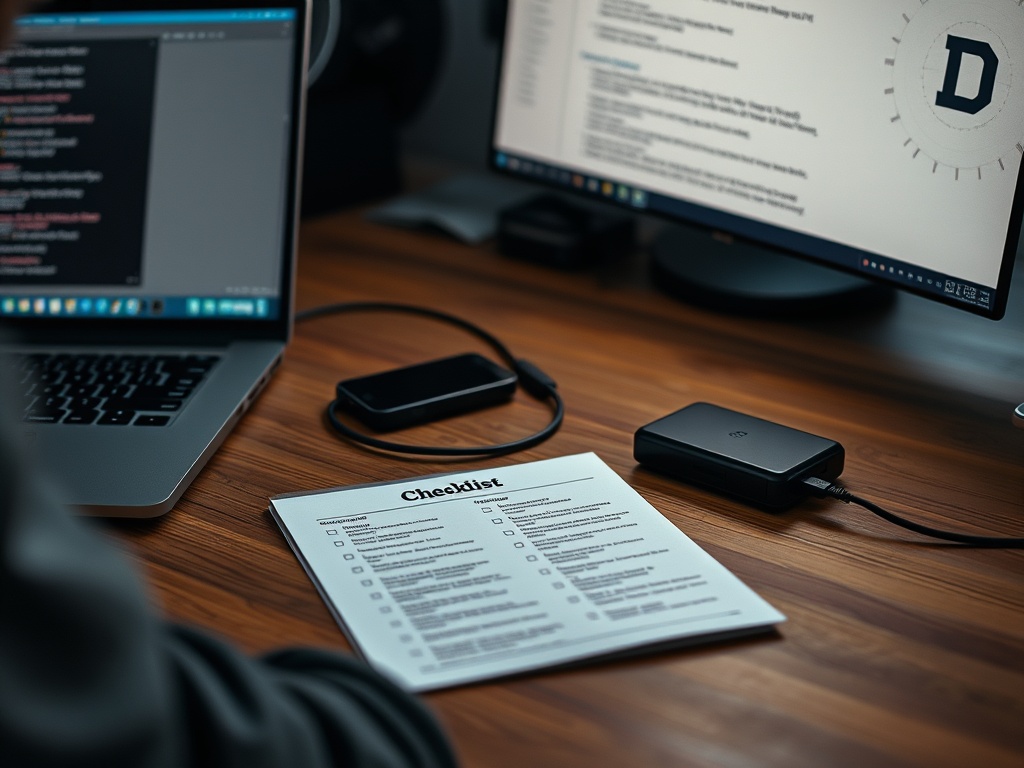
Move files after the storage plan is clear. Do not copy an old desktop mess onto a new desktop. Bring over active projects first, archive old files separately, and use clear folder names. A note-taking app setup can help you separate reference notes from files that belong in Documents, Drive, or OneDrive.
Be careful with downloaded installers from search results. Go to official vendor pages when possible. This is also a good time to read a phishing and spoofing comparison so fake support pages, imitation login screens, and suspicious download prompts are easier to spot.
Handoff details most setup guides skip
Save purchase receipts, warranty information, recovery keys, and device serial numbers in a safe location. A new PC often works smoothly until a repair, theft report, account recovery, or insurance claim requires details that were never stored. Keep those records outside the PC as well, because a local-only note is not helpful if the machine will not boot.
Create one recovery test after setup. Confirm you can sign in after a restart, access the backup location, open your password manager, and find your most important folder. This small test catches account, sync, and permission mistakes before the computer becomes the center of daily work.
Keep default choices reversible
During setup, avoid irreversible decisions when you are unsure. For example, do not delete the old device until the new one has run for several days, synced the right files, opened essential apps, and completed updates. Keep the old machine available as a reference while you confirm printer access, browser bookmarks, email, and file locations.
Create a short “changed from default” note. Include privacy settings, browser choice, startup changes, cloud sync choices, and installed security tools. If a future problem appears, that note gives you a path back instead of forcing you to remember what changed during the excitement of first setup.
Treat reversibility as part of good setup. The best configuration is not only secure and tidy; it is understandable six months later.
Your first-week audit
After a week, check storage use, startup apps, update history, backup status, and app list. Remove trialware you did not use. Confirm that important files are synced or backed up. Test that you can recover your account with your chosen email or phone method.
A strong Windows setup is not about changing every setting. It is about making the default path safe, organized, and easy to maintain. When backup, updates, accounts, and folders are clear, the PC can become a tool instead of another source of administrative clutter.